

If Mailocator is correctly installed and running, you will see real traffic from your website (visits, events, etc.) in the Monitoring section of the Mailocator application.
Displaying data may be subject to cookie consent if required by your website.
To make sure that Mailocator is actually loaded, you can verify its presence directly in the browser console. After opening the page, the Mailocator signature (information about the script loading and its version) should be visible in the console.
Here's an example of what the signature looks like in the console: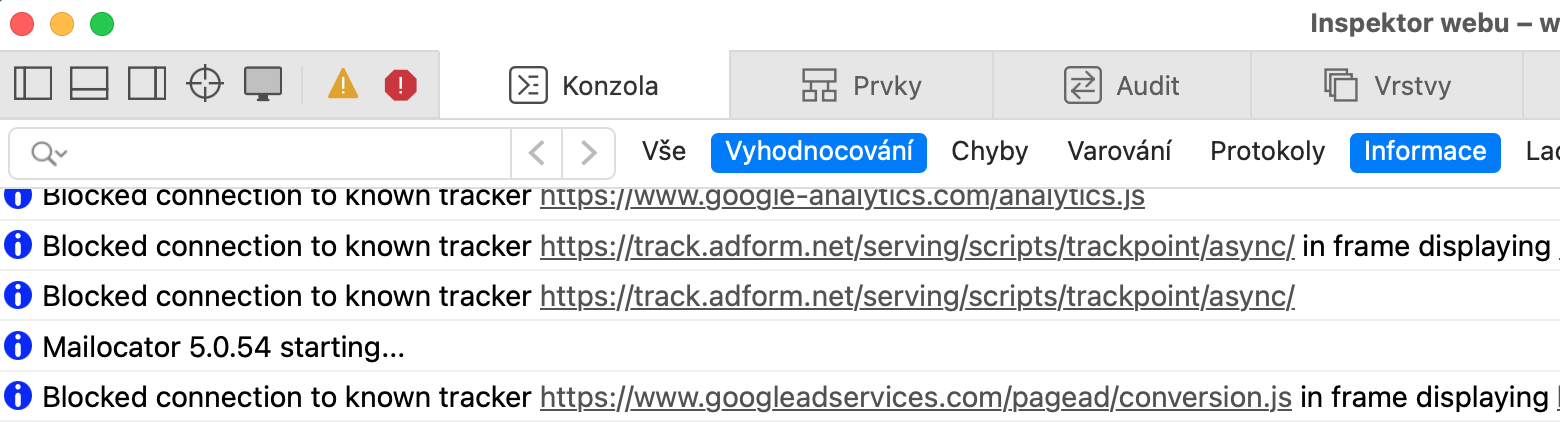
How to open the browser console?
Mac (Chrome): Alt + Cmd + C
Windows (Chrome): Ctrl + Shift + J
Every modern browser (Chrome, Firefox, Edge, Safari) has a console, but the keyboard shortcuts or menu location may vary slightly.
If you do not see Mailocator in the console and no data is displayed in Monitoring, it is possible that the snippet was:
- accidentally deleted
- blocked by cookie settings
- or blocked by security policy or browser extension (unlikely)
Solution:
contact your web administrator
if you have access to Google Tag Manager, check and correct the Mailocator snippet insertion